 DS Development News
- Version 4 of Bells and Whistles for Outlook
- Weight Diet for Outlook
- Using Outlook Connectors
- Email read and delivery confirmations
- Auto Follow Up v1.0
- Easy Mail Merge v1.1.95
- Send Email Limit for SMTP Mail Servers - The Basics
- Best practices for effective email marketing
- How to Manage or Remove Outlook Add-ins
- Auto Reply Manager - Update 2.0.80
6
Instead of deleting, move attachments from Outlook to a folder automatically!
1 Comment · Posted by Bogdan in Email & Outlook
Tags: archive attachments · attachment email · decrease pst · move attachments · pst size
If Outlook is running slow, don’t just go and buy yourself a new PC or the latest version of Outlook – the answer is likely easier and just a stone’s throw away! There are any number of reasons why Outlook’s speed degrades over time (particularly after a few months of extensive use) but the most common ones number: outdated Outlook versions, corrupted files, unresponsive plugins, large attachments and most of all, large PST sizes (the PST is the file where Outlook saves all your emails).

As I stated in a previous article, Outlook is notoriously slow when dealing with large PST files, and keeping your Inbox under control can be achieved by removing duplicates, updating to the latest Service Pack, running the trusty Inbox Repair Tool and so on. Another option, one that will shrink your PST down considerably, is to save your attachments to disk and erase the messages they came with. This option isn’t very popular because of the following problem: “What if you still need the email that has the attachment in the future? “. So, unfortunately, you’re left with large emails, large attachments, decreased performance and less disk-space (since I bet that you download your attachments to a location and then forget about them as well).
For cases such as this one we have created Weight Diet for Outlook and its automated “move attachments” feature. What this option does is scan your incoming emails for large attachments and automatically moves them to your desired folder, on-disk. The moved attachments will still be accessible from the original email, in the form of a link to the file on your hard-drive, so nothing’s lost! Not only will your PST size decrease and Outlook will be running faster, but you won’t be left with two versions of the same files anymore (once in the email and once where you saved them). Of course, you don’t want every little attachment to be moved (like signature images, for example), so you can just specify the minimum size of the files and even specific extensions that will be processed by Weight Diet. If you won’t be using the moved attachments often, you can choose to auto-archive them before moving, so you’ll have even more space left on your computer.
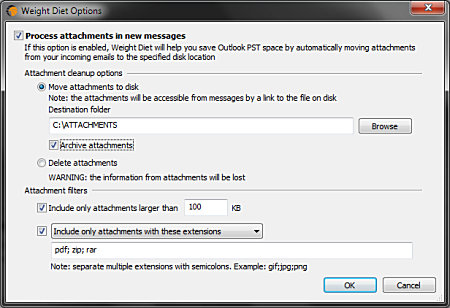
Just as an example, I ran the move attachments tool for on my own PST (just one email account), that is 1,24 Gb large (and so it reaches the upper limit of Outlook’s usability). In a matter of minutes, Weight Diet found and moved 535 MB worth of attachments! That’s almost half the size of the PST! It may seem subjective, but I checked one of the processed emails and opening an attachment was actually faster than before (probably because the attached files were fragmented all over my hard-drive).
Afterwards, I restored the attachments to their original emails and choose to archive them before moving. This left me with the same sized PST, but the archived attachments now take up only 412 Mb (not that big a difference, but they were mostly image files and .pdf files – your experience may vary).
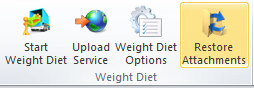
So, just give it a try and see how speedy Outlook will seem afterwards and how easy it is to keep control over your attachments. In addition to moving attachments, Weight Diet for Outlook also allows you to upload them “to the cloud”, compact your mailbox and remove troublesome duplicates and obsolete items.
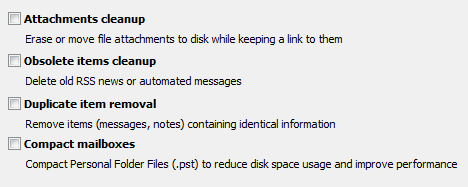
All these features are available with a lifetime license that costs only $29.95 (30-day money back guarantee).
Do you have any other speed-related tips to share, besides moving attachments? Please drop us a line in the comments section or at support@emailaddressmanager.com.
If you have ever sent out an email newsletter, I’m sure that with each passing campaign you encountered people who opted out of your email list. Have you ever asked yourself why? Read more: Why do people unsubscribe to emails? | 1 Comment
The subject line in an email, almost as much as the from line, is one of the most important deal-breakers for your readers. That’s why this week we looked at how different email clients (on all platforms we could get our hands on) dealt with them… So, continue reading and see for yourself how many characters your subject line should have! Read more: The maximum displayed length of the email subject line | 1 Comment
In last week’s article, we hoped to convince you that the from line is at least as important as the subject line in all your email communications. Now, to help you out, we tested different platforms and came up with the following “cheat-sheet”, detailing the maximum displayed length of the from line on different browsers, phones and desktop applications! Read more: The maximum displayed length of the email from line | 2 Comments
1 comment
<< Free email resources (icons, email backgrounds, stock photos) for all your future communications

Wim · August 27, 2014 at 7:16 am
does it work in a Gmail IMAP environment?